> ## Documentation Index
> Fetch the complete documentation index at: https://subframe-59800133-gtmbot-restructure-dark-mode-docs-v2.mintlify.site/llms.txt
> Use this file to discover all available pages before exploring further.
# Generating designs
> Use AI to generate page designs, make edits, and update your theme.
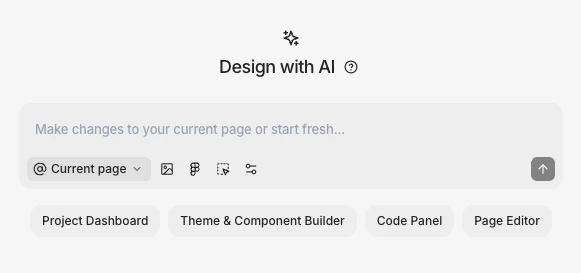 You can prompt AI to generate page designs, edit your existing designs, or update your theme.
* **Design new pages** — Generate multiple variations of page designs
* **Edit your page directly** — Make targeted changes to your current page
* **Update your theme** — Modify colors, fonts, and tokens project-wide
* **Answer questions** — Search Subframe docs for help with features and development workflows
Ask AI is for creating and updating designs. For adding interactivity and state, use [Prototype mode](/learn/prototype-mode/overview).
## Getting started
1. Click **Ask AI** in the mode switcher (top-right) of the page editor or press Cmd + K and select **Mode > Ask AI**
2. Type a prompt and press Enter or click the send button
3. Ask AI will create a new conversation and responds to your prompt
Our AI will choose how to respond based on your prompt:
* **Variations** — For new designs, creative exploration, or prompts requiring new components. Ask AI will generate 1-4 variations for you to choose from.
* **Direct edits** — For simple changes to existing elements like colors, text, or layout tweaks
## Apply designs
After generations finish streaming, click each thumbnail to open a preview.
You can prompt AI to generate page designs, edit your existing designs, or update your theme.
* **Design new pages** — Generate multiple variations of page designs
* **Edit your page directly** — Make targeted changes to your current page
* **Update your theme** — Modify colors, fonts, and tokens project-wide
* **Answer questions** — Search Subframe docs for help with features and development workflows
Ask AI is for creating and updating designs. For adding interactivity and state, use [Prototype mode](/learn/prototype-mode/overview).
## Getting started
1. Click **Ask AI** in the mode switcher (top-right) of the page editor or press Cmd + K and select **Mode > Ask AI**
2. Type a prompt and press Enter or click the send button
3. Ask AI will create a new conversation and responds to your prompt
Our AI will choose how to respond based on your prompt:
* **Variations** — For new designs, creative exploration, or prompts requiring new components. Ask AI will generate 1-4 variations for you to choose from.
* **Direct edits** — For simple changes to existing elements like colors, text, or layout tweaks
## Apply designs
After generations finish streaming, click each thumbnail to open a preview.
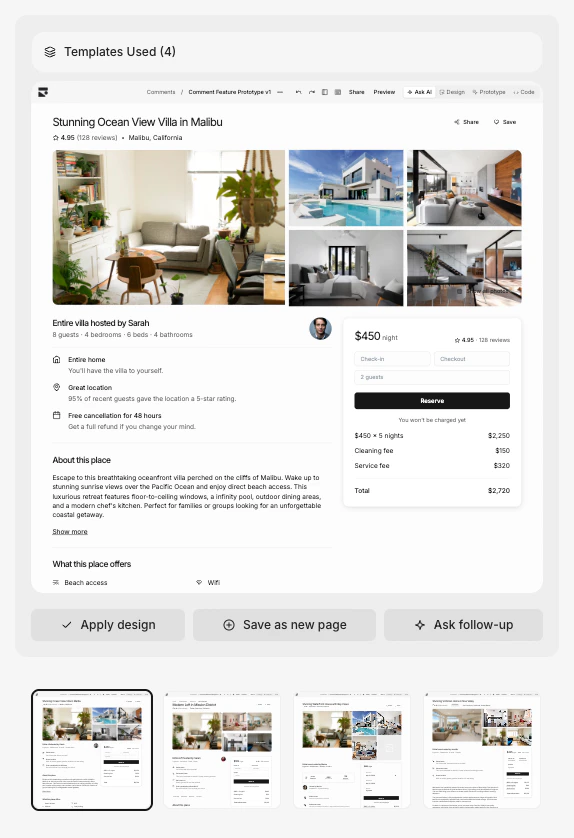 From the preview, you can:
* **Apply design** — Replace your current page
* **Save as new page** — Create a new page with this design
* **Ask follow-up** — Refine with another prompt
You can even **mix and match elements** from different variations by dragging elements from the preview onto your canvas.
After generating, send follow-up prompts or switch to [design mode](/learn/design-mode/layers) for manual edits. Each follow-up can reference the current page and previous generations.
## Conversation history
Recent conversations appear at the bottom of the Ask AI panel. Click **Show all history** to see older conversations grouped by date.
Your conversations persist across sessions and pages so you can reference past generations.
## Ask AI toolbar
Ask AI includes additional tools:
* **[Referencing pages](/learn/ask-ai/referencing-pages)** — Remix other pages as prompts for your design
* **[Upload image](/learn/ask-ai/image-to-design)** — Add reference images
* **[Import from Figma](/learn/ask-ai/image-to-design#import-from-figma)** — Import Figma designs using the image model
* **[Personalize AI](/learn/ask-ai/personalizing-ai)** — Configure project-wide context
You can also use [quick edits](/learn/ask-ai/making-quick-edits) to make targeted edits to specific elements using AI.
## Troubleshooting
Ask AI is great for generating new designs or making broad changes to your page. But for more targeted edits, you may want to use [quick edits](/learn/ask-ai/making-quick-edits).
Open the component editor, then right-click or press / to open [quick actions](/learn/design-mode/quick-actions) and select **Ask AI to edit...**. You can insert elements, create variants, and refactor components directly in the component editor.
Press Cmd + Z to undo. Subframe maintains full undo history, so you can step back through
multiple changes. You can also use [Version history](/learn/projects/version-history) to restore a previous state.
From the preview, you can:
* **Apply design** — Replace your current page
* **Save as new page** — Create a new page with this design
* **Ask follow-up** — Refine with another prompt
You can even **mix and match elements** from different variations by dragging elements from the preview onto your canvas.
After generating, send follow-up prompts or switch to [design mode](/learn/design-mode/layers) for manual edits. Each follow-up can reference the current page and previous generations.
## Conversation history
Recent conversations appear at the bottom of the Ask AI panel. Click **Show all history** to see older conversations grouped by date.
Your conversations persist across sessions and pages so you can reference past generations.
## Ask AI toolbar
Ask AI includes additional tools:
* **[Referencing pages](/learn/ask-ai/referencing-pages)** — Remix other pages as prompts for your design
* **[Upload image](/learn/ask-ai/image-to-design)** — Add reference images
* **[Import from Figma](/learn/ask-ai/image-to-design#import-from-figma)** — Import Figma designs using the image model
* **[Personalize AI](/learn/ask-ai/personalizing-ai)** — Configure project-wide context
You can also use [quick edits](/learn/ask-ai/making-quick-edits) to make targeted edits to specific elements using AI.
## Troubleshooting
Ask AI is great for generating new designs or making broad changes to your page. But for more targeted edits, you may want to use [quick edits](/learn/ask-ai/making-quick-edits).
Open the component editor, then right-click or press / to open [quick actions](/learn/design-mode/quick-actions) and select **Ask AI to edit...**. You can insert elements, create variants, and refactor components directly in the component editor.
Press Cmd + Z to undo. Subframe maintains full undo history, so you can step back through
multiple changes. You can also use [Version history](/learn/projects/version-history) to restore a previous state.